September 3, 2026: MCP Server
New Features
Modules & Submodules ⭐
You can now organize your curriculum as parent Modules that contain Submodules – replacing the old Module Groups with a clear, one-level hierarchy.
Key capabilities:
-
Build the hierarchy: Add existing Modules as Submodules of a parent Module, or create new Submodules directly from the module catalog.
-
Flexible ECTS ownership: Decide per Module whether ECTS and exams are managed by the parent Module or by its Submodules.
-
Pass requirements: Define whether all Submodules, a required number, or specific Submodules must be passed before the parent Module counts as passed.
-
Election scope: Choose whether students elect a Module as a whole (receiving all Submodules) or elect Submodules individually.
-
Hierarchy everywhere: Study plans, curricula, module planning, exports, and the module glimpse show the hierarchy so students and staff always see how Modules fit together.
-
Safe migration: A guided migration converts existing Module Groups into the new structure, with a snapshot so the change can be reverted.
-
Duplicate with Submodules: Duplicating a parent Module now carries its Submodules along.
-
Enabled by default for new institutions: New institutions start with the hierarchy already active.
How to use: Go to Settings → Configuration Wizard and enable "Module hierarchy" (after migrating existing Module Groups). Then open Campus management → Modules, open a parent Module, and use the Submodules tab to add Submodules and configure ECTS, pass requirements, and election scope.
Unified Settings with Page-Level Permissions
Your personal account pages now live in a single Settings area, and administrators can grant read or write access to every settings page individually.
How to use: Open Settings → Roles & Permissions and select the settings pages each role may view or edit. Personal pages (details, notifications, security) are found under Settings → Personal.
Manual Exam Attempt Management
Staff can now manually create or remove exam attempts for students, with clear warnings, previews, and a full audit trail in the activity feed.
How to use: In the Exam Center, open an exam's user list and choose "Add attempt" or "Remove attempt"; a preview shows affected students and any warnings before you confirm. Elections and existing attempts are also preserved when a student is switched to a new Module version.
AI Assistant Access via MCP Server
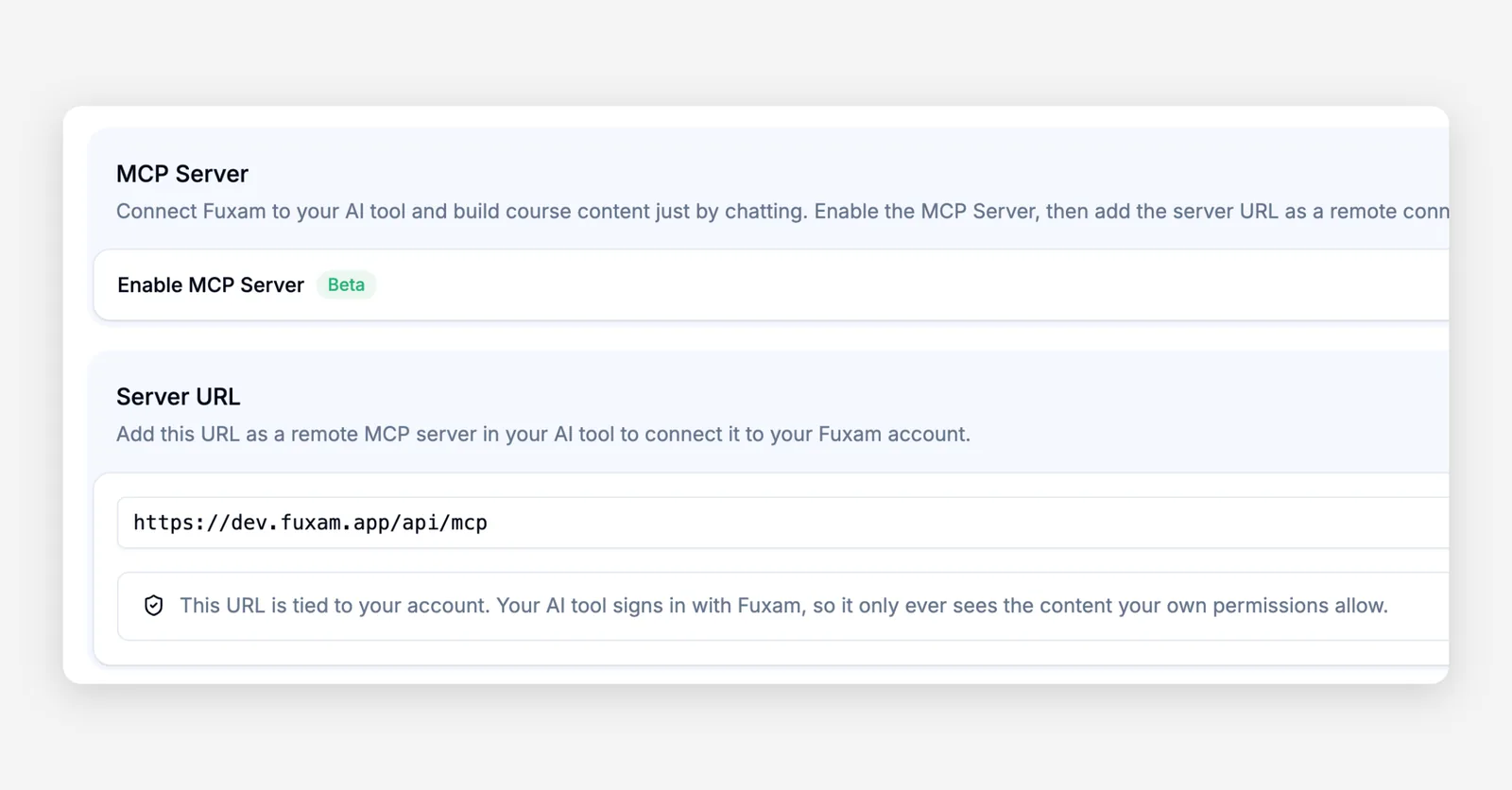
You can connect Claude or ChatGPT to Fuxam to browse your courses, view progress and deadlines, and even create course content – directly from your AI assistant.
How to use: Go to Settings → Personal → AI, enable the MCP Server, and copy the connection URL into your AI assistant following the on-screen steps.
Dedicated Pages for Creating Content
Content blocks are now created on their own full page instead of a side sheet – start by giving your content a name, switch between content types, and recover unsaved drafts.
How to use: In a course or learning journey, click "Create" and enter a name; you'll be taken to the new creation page. Sections can now also be edited directly on their overview page.
EvaSys Evaluation Integration
Institutions using EvaSys can now push courses, participants, and instructors to EvaSys for course evaluations, with live progress and a sync history.
How to use: Open Marketplace, install EvaSys, enter your credentials and test the connection, then choose the term and courses to export and click "Sync now".
Smarter Elective Timing
Elective groups now automatically use the right election mode – term-based or "any time" – and show it as a tag, with clearer messages about upcoming, open, and closed election windows.
How to use: In a curriculum, open an elective group's settings to see the election mode and period; students see the status directly in their study plan.
Course-Specific Access Permissions
Roles can now be given separate read, create, update, and delete permissions for courses, so staff only see and edit the courses they're allowed to.
How to use: In Settings → Roles & Permissions, adjust the course permissions for each role; course lists, bundles, and learning journeys filter automatically.
Chat Contact Restrictions
Administrators can now control who can message whom by allowing chat contact with everyone or only with selected roles.
How to use: In Settings → Roles & Permissions, open a role and set its chat contact permissions; contact selectors and group invitations respect these rules.
Granular Module Editing Permissions
Module editing can now be granted field by field – details, description, workload, exam requirements, attendance, credit points, and attempt logic.
How to use: In Settings → Roles & Permissions, expand the module editing permission group and select which fields each role may edit.
Statistics Center
University statistics and reports are now combined in one Statistics Center with tabs and collapsible sections.
How to use: Open Statistics Center from the sidebar; the available tabs depend on your role's permissions.
View Past-Due Learning Content
Students can now open learning-journey items after the deadline to review content, while submitting or completing them stays disabled.
How to use: Simply click any past-due item in a learning journey; a tooltip explains why submission is no longer possible.
Matriculation Number in Exam Lists
Exam Center tables now show each student's matriculation number (or your institution's ID field) as a read-only column.
How to use: Open any exam user list in the Exam Center or My Exams; the column appears automatically when your institution has an ID field.
Separate Permissions for User Notes
Creating, reading, updating, and deleting user notes can now be granted independently per role.
How to use: In Settings → Roles & Permissions, adjust the user notes permissions for each role.
Improvements
Faster Course Analytics
Course analytics now load section by section with placeholders, so you see results sooner and attendance data loads far more efficiently.
Faster Module Catalog
The module catalog and election views load noticeably faster thanks to slimmer data loading.
Unsaved-Changes Protection for Application Forms
Leaving the application form editor with unsaved changes now asks you to save, discard, or stay, and shows clear progress states.
Clearer Disabled Save Buttons
When saving a module, study program, or curriculum version is disabled, a tooltip now explains exactly why.
Name on Attendance PDF
Exported attendance PDFs now show the student's first and last name in the header.
Attendance Notice on Appointments
Appointments that don't count toward attendance now say so in their details.
Clearer Submission Confirmation
After submitting an exam, the confirmation now names the exam and module you submitted.
Clearer Grade Permission Labels
Permission names now clearly distinguish course grades from Exam Center grading.
Reports Run on a Dedicated Read Connection
Custom reports now run separately from everyday app traffic, keeping the platform responsive.
Longer Recurring Appointment Series
Daily recurring appointments can now span two full years, including leap years.
Mobile App Enhancements
Push notifications now show the correct unread badge count, and the mobile app can subscribe to your calendar via iCal and manage addresses and phone numbers.
Company Management Toggle
Enterprise management can now be enabled by default in the Configuration Wizard.